Skip to content

USB Security Key

If a cell phone is not an option for your multifactor device, we have USB security keys available. These will require a small one-time fee charged to your department (and your financial manager's approval). If you are interested in this option, please contact the IT Service Desk for more information.

Setup Security Key

1. Login to USI by going to https://weblogin.usi.edu

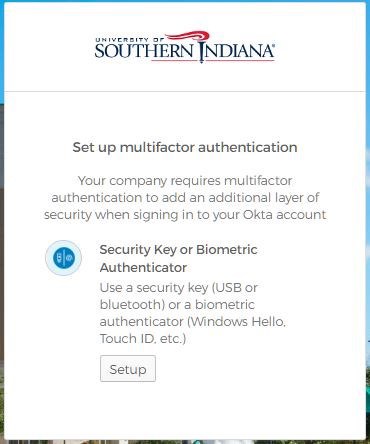
2. After logging into your account, you will be prompted to set up Multifactor Authentication. Select "setup" on Security Key or Biometric Authenticator to configure.
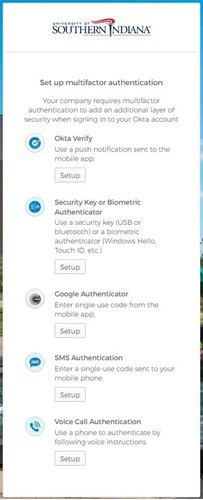
Screenshot of USI Okta MFA setup page with available authentication methods

3. Select "Setup"

USI Okta MFA prompt showing the setup option for Security Key or Biometric Authenticator

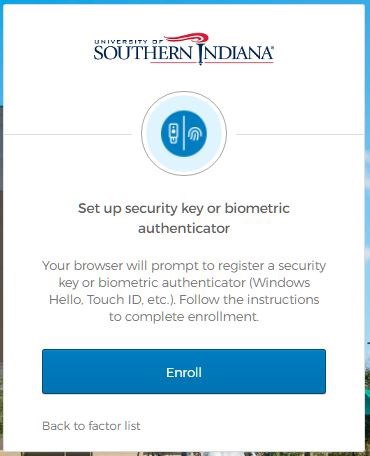
4. Select "Enroll"

University of Southern Indiana Okta prompt to enroll a security key or biometric authenticator, featuring a blue Enroll button

5. Confirm the account you want to attach to your security key and click "OK"
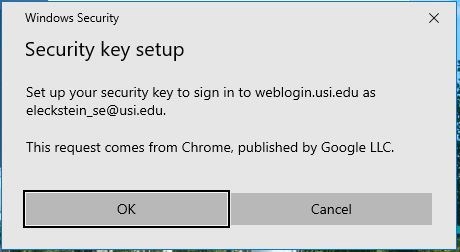
Windows Security prompt asking to set up a security key to sign in to weblogin.usi.edu with OK and Cancel options.

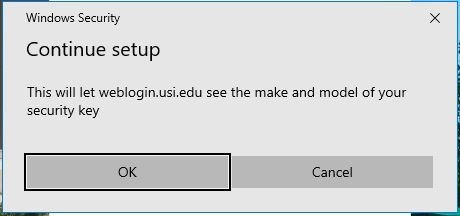
6. Click "OK"

Windows Security prompt to continue setup, allowing weblogin.usi.edu to see the make and model of the security key.

7.Insert your security key into your computer USB Port
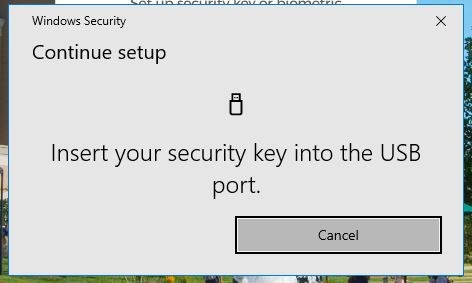
Windows Security prompt asking to insert the security key into the USB port to continue setup.

8. Create a PIN, the PIN will be required to login into your account

*The PIN can be any series of numbers, letters, and/or special characters
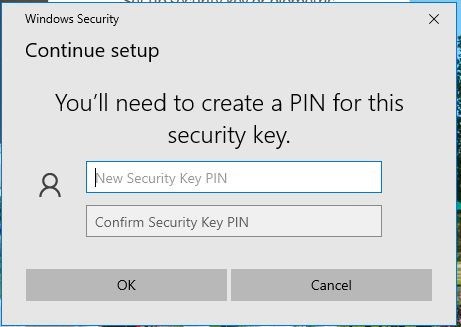
Windows Security prompt asking to create and confirm a PIN for the security key.

9. After the security key is configured on your computer, touch the button or sensor on security key to finish setting up your device.
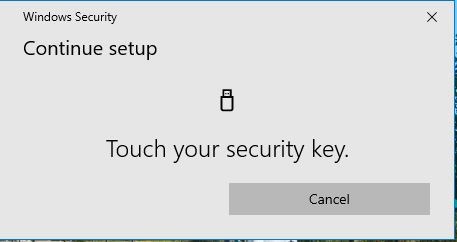
Windows Security pop-up window titled "Continue setup" displaying a USB icon and the instruction "Touch your security key."


Log In with Security Key

1. On your next login to myUSI or Office 365, you will be prompted to insert the security key and enter the PIN and click "OK"
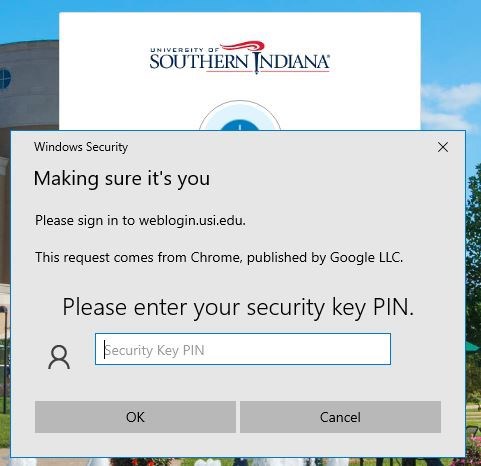
Windows Security pop-up asking to enter a security key PIN to sign in to weblogin.usi.edu.

2. Touch the button or sensor on your security key
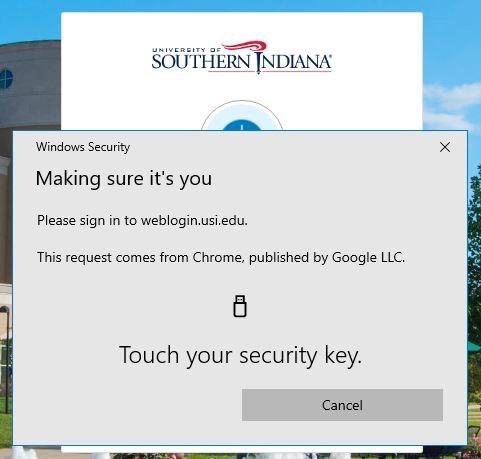
Windows Security pop-up prompting to touch a security key to sign in to weblogin.usi.edu.

You can also use your security key to login to Windows computers.  For information on how to do that, please visit Multifactor Authentication with Security Key for Windows Login